Collaborative Alphabet
Project Specification
Each student will be assigned 3 letterforms to animate in Adobe Animate.
See letter assignment to the left. You need to create:ONE (1) individual
Animate files for each assigned letter and/or punctuation and
rendered each out as an .mp4 video.
ALL letters will be created in ALL CAPS.
We will be using the font: [Decided by the Class]
This will be a frame-by-frame animation.
There will be ONLY 30 frames in each letter animation.
FILE SET UP: You will be using the supplied template.
Here are the specification for the file.
Preset: Social / HD
Canvas Size: 1280 x 720 pixels
Frame Rate: 30 FPS
Platform type: ACTIONSCRIPT 3.0
Total Number of frames: 30
1. Break apart (Command B) your character to change it from a FONT into a SHAPE.
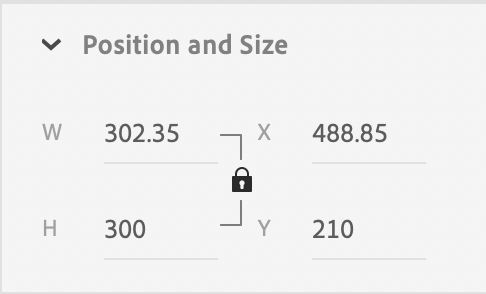
2. Make the height of the letter 300 pixels by using the Position and Size menu. Be sure the LOCK is on to maintain the proportion of the letter and change the Height to 300 pixels by typing in: H=300
3. Use the Alignment menu (Window/Align) to position the letter in the center of the stage. This will be the FINAL POSITION of your letter.
4. Use a variety and combination of animation techniques:
• You can animate the letter (broken apart) as a SHAPE with a Shape Tween.
• You can convert the shape into a MOVIE CLIP (Modify/Convert to Symbol) and animate the MOVIE CLIP using a Classic Tween.
• You can animate on a path (Select the Layer, Right Click and choose: Add Classic Motion Guide).
Don’t forget to draw your motion path on the guide layer.
Number of Colors: 5 (Hexidecimal Color) — to be determined by the class
Refer to your project sheet and the template for your colors.
Note: The Color of your assigned character must be t.b.d. on the LAST FRAME of the animation (FRAME 30)
FONT: t.b.d.
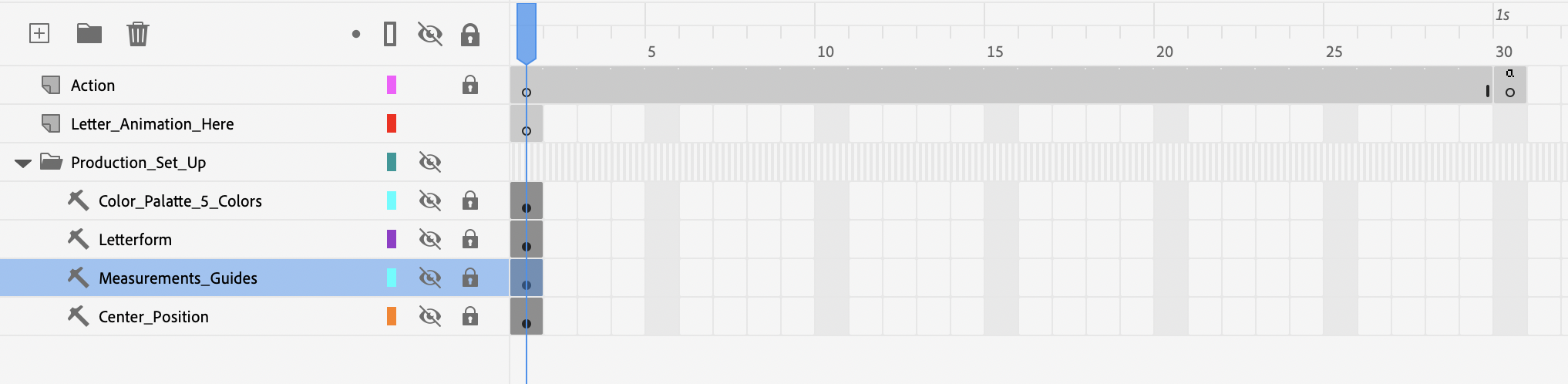
The Template is set up with reference layers in a folder. You can turn the visibility on and off if you need to reference dimensions.
The reference layers are guides and will NOT render out.
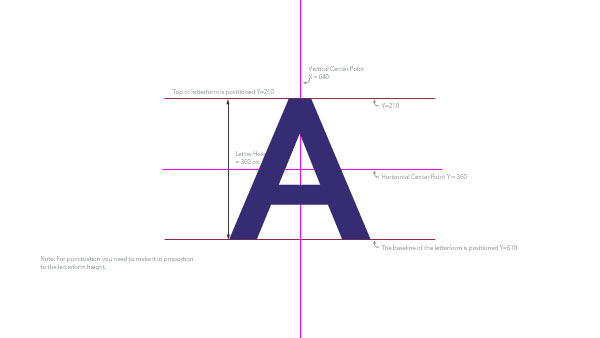
The final letter or punctuation needs to end in the center position shown below.
Punctuation needs to be in the relative size and proportion to the 300 high pixel letter forms.
All letters need to sit on the baseline indicated.
The letter height = 300 pixels. You will have to convert the text to a shape
by breaking the text apart: Command B, then scale it to 300 pixels high.
Refer to the layer that specifies all the measurements in the Template File. The letters should be 300 pixels high.
Use the Position and Size menu to resize your letters to 300 pixels high.
BREAK your text before you do this. Command B
Here’s how to change a movie clip to the color palatte:
- Select your Movieclip.
- Go to COLOR EFFECT/TINT
- Change the RBG values as follows:
Look up the RBG values by plugging them into Photoshop and looking at the corresponding RBG values.
Your final file needs to be rendered out as an .mp4 movie.
FIRST: Open your MEDIA ENCODER APP before you render from Animate. This will make it quicker to process.
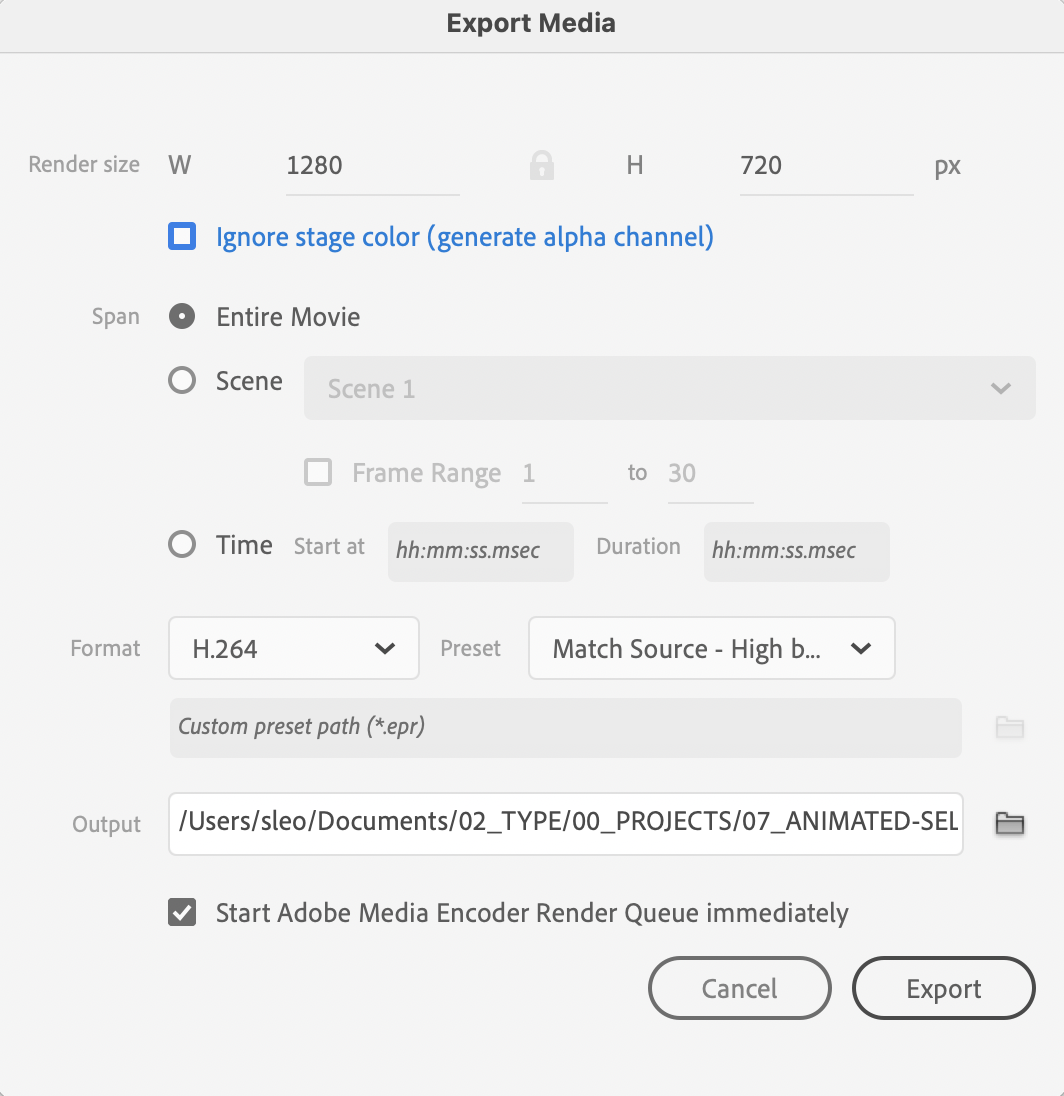
NEXT: Go to your Animate file. Go to FILE/EXPORT VIDEO MEDIA.
A popup menu will appear as pictured below. Keep all the settings indicated below. They should be the default.
Make sure you save your movie file in your PROJECT FOLDER.
YOUR PROJECT FOLDER SHOULD HAVE INCLUDED IN IT …
1. Four (4) Animate Files (.FLA)
2. Four (4) .SWF files
3. Four (4) .MP4 files
ZIP (Compress) your PROJECT FOLDER (make sure the file name STARTS WITH YOUR LAST NAME).
Follow the naming conventions for your letters or punctuation:
FOR LETTERS:
Please name each animate LETTER file:
ie. If you have the letter K, name your .FLA file:
K_Lastname.fla
——–
FOR PUNCTUATION:
You’ll need to type out the name of the punctuation.
Please name your punctuation file:
ie. If I you have a comma, name your .FLA file:
Comma_Lastname.fla
CLICK HERE FOR THE SHORT CUT KEYS FOR ANIMATE FOR BOTH MAC & PCS
Franchise Alphabet – Examples
Study the inventive animations for the letterforms.
Try to create a variety of motion using various directions.
Diagonal, Horizontal, Vertical, Zigzag, Spiral, etc.
Also notice some of the shapes morph and bend.
The Collaborative Alphabet – 2021 Spring
Benedictine College
The Collaborative Alphabet – 2022 Fall
Benedictine College
The Collaborative Alphabet – 2023 Fall
Benedictine College