Objective
This exercise helps to get you familiar with and practice:
– Creating a precise accurate grid to develop designs
– Using layers and masks
– Locking layers, duplicating layers, copying and pasting within layers
– Using the pathfinder tool to divide objects
– Two documents to create and compose/copy and paste between documents
– File assets organized
– Letterforms
– Create a composition by combining abstract elements by exploring positive and negative space to create an aesthetically pleasing final image
– Understand the difference between a font and an outline a.k.a. — Font verses Object / Text verses Shape
Project Specification
• Choose only one (1) font – select interesting letterforms within that typeface. Isolate just enough of each letter to hint at its identity. Strike a balance between positive and negative space [white & black]
• Color: BLACK [ no color on this project ]
• Using ILLUSTRATOR, Make your Document size: 11″ x 14″ with .25” bleeds
You will be creating a 2″ x 2″ detail within a grid comprised of 16 squares.
Four squares by four squares.
INSTRUCTIONS: [You will be using 2 separate documents.]
1. Create a project folder on your desktop. Name it: Letterform.
2. In Illustrator, create a new document 11″ x 14,” with .25″ bleeds.
3. Turn your rulers on. [View/Rulers/Show Rulers] or ⌘ R
4. Save your document into the folder as: LastName_LetterformAbstract.ai
5. Open the Layer Menu [Window/Layers]. Double click on “Layer 1” and rename it to: Grid Guidelines. Make sure your guides are unlocked.
To do this, go to top menu: View/Grids&Guides/Lock Guides and make sure it is unchecked.
6. Create a grid by pulling guidelines from the rulers based upon the following measurements:
X Values: 1.125, 3.125, 3.375, 5.375, 5.625, 7.625, 7.875, 9.875
Y Values: 1.125, 3.125, 3.375, 5.375, 5.625, 7.625, 7.875, 9.875,12.75
Use the “Transform Menu” at the top of the application to adjust the guidelines to the exact measurements, or open the Transform Menu [Window/Object&Layout/Transform]
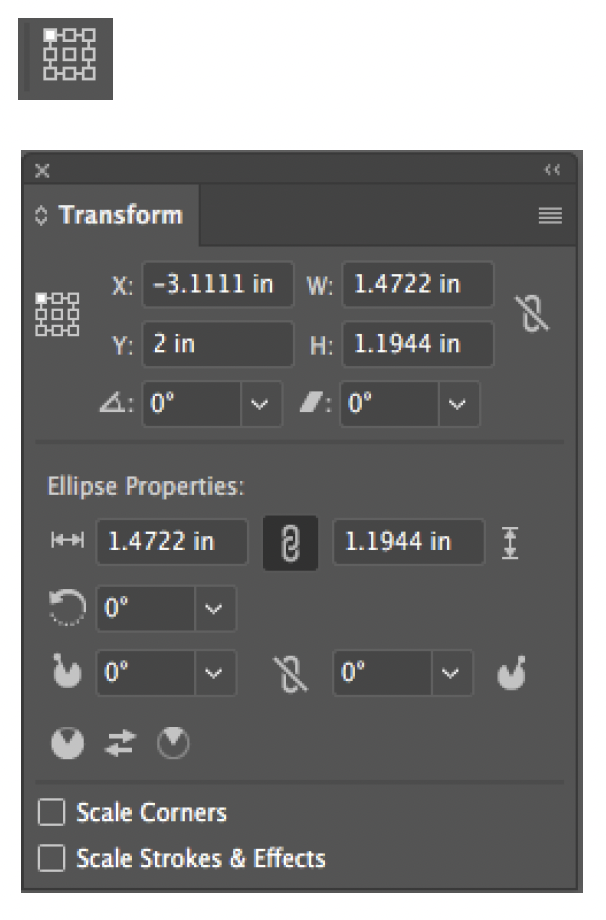
7. Create a new illustrator file. Make your document 6″ x 6″ – save this file into
the same project folder with the name LastName_square.ai
8. Double click on “Layer 1” in this file and name this layer Artwork. Make sure
your rulers are turned on. Pull guidelines from the rulers based upon the
following measurements: X Values: 2, 4 and Y Values: 2, 4. Lock this layer.
9. Create a new layer. Double click it and rename it to Mask. Select the rectangle drawing tool, turn the stroke off and make the fill blue. Make this square the size of the artboard: 6″x6″. Position and size this shape by using the “Transform Menu.” Be sure that the registration point is selected on the top left box in the registration grid. Position this box at X=0, Y=0. On the same layer, change the fill color to red,no stroke. Draw another square 2″ x 2″. Center this square on the document by using the “Align Menu” [Window/Object&Layout/Align]. Expose the options on this menu by clicking the top right drop down and make sure that “Align to Artboard” is selected.
Click on the Horizontal Align Center and the Vertical Align Center icons to center the red square on top of the larger blue square.
10. Select the red and blue squares by using the selector arrow and holding down the shift key. Open the “Pathfinder” menu [Window/Object&Layout/Pathfinder]. Click on the “Exclude” icon. (First row, last icon). This will cut the 2″ square out of background square. Click on the resulting shape and change the color to white. Lock the mask layer and unlock the Artwork layer. Use this document to create your 2″ square letterforms.
You will be putting your letterforms on the “Artwork Layer” and trimming them to fit.
11. You are now set up to explore your selected typeface. Select a letter or number from the typeface you have chosen. Type the character on the “Artwork” layer. You may have to enlarge the type size. You can do this right in the type menu (⌘ T) or from the top menu (Window/Type&Tables/Character), or you can grab the corner point of the type box, hold down the shift key and drag the type box to the size you want to work with. Be sure to keep the letterform in its correct proportion – that means not to distort it. With the “Mask layer” on, position the letterform in an interesting way within the square area, paying attention to positive and negative space. You can rotate the letter if you wish. When you have created an interesting form, trim the font to the square dimension.
12. Select the letterform and convert the font to outlines [Type/Create Outlines]. Creating outlines converts the font into a shape. It is no longer identified as text. Let’s make the letter
shape PRINTERS BLACK. In your SWATCHES menu, click on the flyout menu and select
New Swatch. Create this color as Cyan: C=60 / Magenta: M=40 / Yellow: Y= 40 and Black: K = 100. Click in the Swatch Name and change it to Printers Black. Click OK. Select this color for your letterforms. Be sure to select this color for all your letterforms.
13. Turn off the “mask layer”.
14. On the “Artwork” layer, draw a 2″ square and position in the center of the document
at: X Values: 2, 4 and Y Values: 2, 4
15. Cut out the type below it by clicking on Object/Path/Divide Objects Below. This will slice the letterform in the exact sized square. Ungroup the object. (Object/Ungroup) or
(Shift ⌘ G). Select and delete the parts of the letterform that fall outside of the 2″ square.
16. Copy this cropped letterform [⌘ C] click on the tab for the final document paste it into
the 11″x14″ project document into one of the 16 squares.
17. Repeat steps 11 through 16 until you have filled all 16 squares in the project document. After you have positioned your 16 squares, you need to complete this assignment by
displaying the typeface name along with a type specimen showing all the letterforms:
A-Z and 0-9 (if they exist in the in the font).
18. Instructions for Making the Type Specimen Below Your Composition:
Select the type tool and click on the artboard. Type in the name of the your chosen font. Make the font size 14 point with 18 point leading. [⌘ T will bring up the Character Menu]
Set the paragraph alignment to center. [Window/Type&Tables/Type/Paragraph]
19. Center the textbox on the artboard. Use the Align menu [Window/Object&Layout/Align]
click the options on in that menu if it is not showing and be sure to select Align to Artboard and center the text box in the center of the artboard. Be sure that your text box is the width of your text.
Tip: If your text box extends the text within, it will factor the entire text box into the alignment.
On the next two line spaces create a type specimen of your font by typing the alphabet showing the cap and lowercase letter of the font. Include the numbers from 0 to 9. Be sure to keep the line length within the boundaries of the outer margin guidelines. If lowercase letters or numbers don’t exist in your selected typeface, then no need to include them in your type specimen.
20. MAKING A PDF FROM AN ILLUSTRATOR FILE TO CREATE A PDF IN ILLUSTRATOR
A. Go to FILE / SAVE A COPY and select Adobe PDF (pdf) for the FORMAT. Be sure to remove the word “copy” from the file name. Save it into your project folder.
Note: If you always save your work this way, you will prevent changing your open .ai file into a .PDF file. It is a current flaw in the illustrator program.
Project Introduction and Tutorial
There is no sound on this video. It is a demonstration of the written instructions in the above assignment.
It has been speeded up. Pause the video if you need to review any of the steps.
The video covers important tools to use in illustrator. Such as: Rulers, Guidelines, Transform, Align, Pathfinder, Transform, Converting Text to Outlines and working between two documents.
The goal is to learn how to use these essential tools.
Once you are familiar with then, you will use the all the time.
They give you access to more accuracy in your work and will help you improve the look of your layouts.