DIGITAL AD SERIES
ASSIGNMENT
Develop a digital add campaign that satifies a myriad of digital ad sizes for a food product, or category of your choice. The goal is to engage your audience and get them to respond some way with enticing and interactive visuals and to offer some form of Call-to-Action (CTA).
SUGGESTED CALL-TO-ACTIONS
Apply Now
Book Now
Contact Us
Download
Learn More
Get Show Times
Request Time
See Menu
Shop Now
Sign Up
Watch More
Listen Now
Subscribe
Choose 5 items to feature in your ads. You won’t be able to use all five images for the small ad sizes. Be sure that you have a Logo, Pricing, and CTA. Optional text could be a small description of the product (see sample below.)
Digital ads are sized in PIXELS.
INSTRUCTIONS:
You can use Photoshop or Illustrator
to create your ads.
Save your images out as JPEGS into a separate folder located in your project folder as I want you to zip that folder and upload the digital ads for this assignment. You should have 13
images in this folder.
Incorporate the ad size into the file name.
For example: AdName_Ad#_ImageSize.jpg
IceCreamParlor-01_800x600.jpg
IceCreamParlor-02_907x250.jpg
Note: Since there are more than 9 images for this assignment, use 2 numerals in your numbering system, a.k.a. 01,02,03, etc.—that way your images will be in numerical order in your folder.
AD SIZES:
1. 800 x 600
2. 970 x 250
3. 320 x 270
4. 160 x 600
5. 320 x 270
6. 300 x 250
7. 728 x 90
8. 320 x 50
Ripple Ads (5 total)
9. 500 x 600
10. 500 x 600
11. 500 x 600
12. 500 x 600
13. 500 x 600
Please set up your project folder with a nested folder called “(YourLastName)_DigitalAds” for your JPGs.
Use the naming convention illustrated in the screenshot: Item#_Image Size
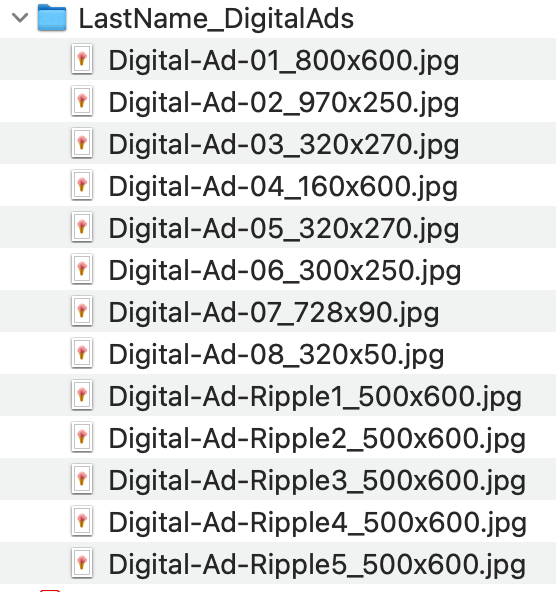
Below are examples of a digital ad series that was created for Safeway for a Thanksgiving promotion.
IN-DESIGN TEMPLATE
After you have developed your 13 digital ads, use the display ad template provided called: “LastName_DigitalAdSeries.indd”
Place your ads in the appropriate square for each digital ad. There are 2 pages in the document.
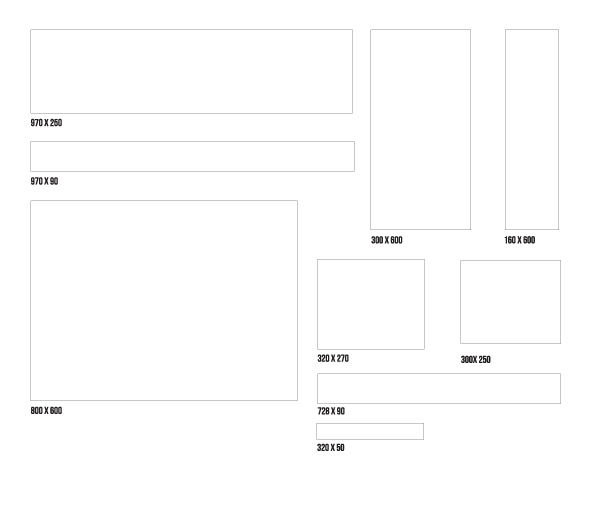
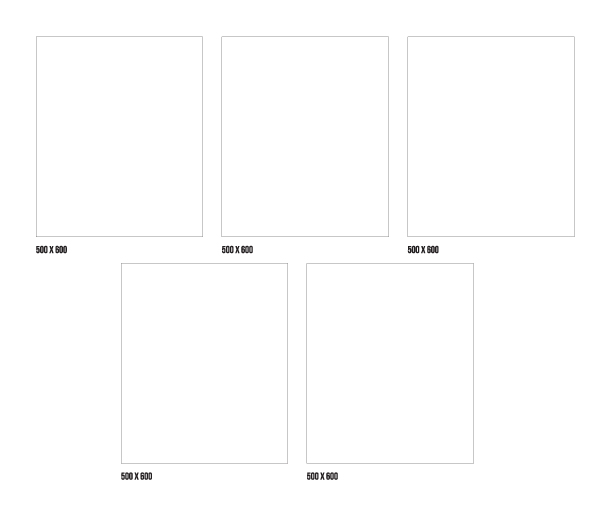
Save out your InDesign file as a Press Quality PDF file.
With InDesign, you can make a PDF right from the InDesign interface by going to:
File/Adobe PDF Presets/[Press Quality]
Digital files do not need a bleed or the crop marks on them, so you just need to save the pdf as is.
Upload your PDF to Google Classroom along with a ZIPPED file that contains the 13 ad JPGs.